 TVoIP
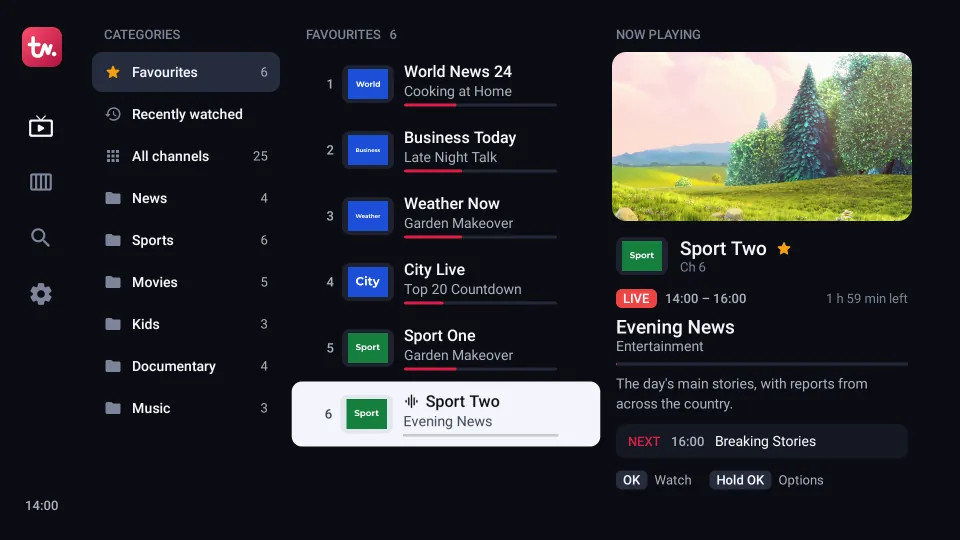
Favourites on the home screen
Your favourite channels as a row on the Android TV home screen, with what's on now.
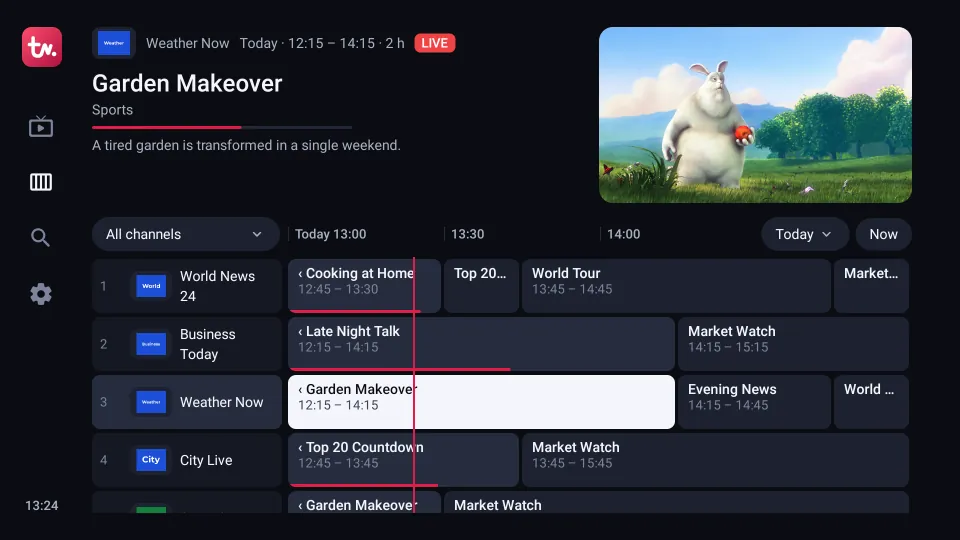
Your provider's channels with a full TV guide, favourites and replays. Set it up from your phone, then use your remote like on any TV.
On your TV, open the Downloader app and type
Setup
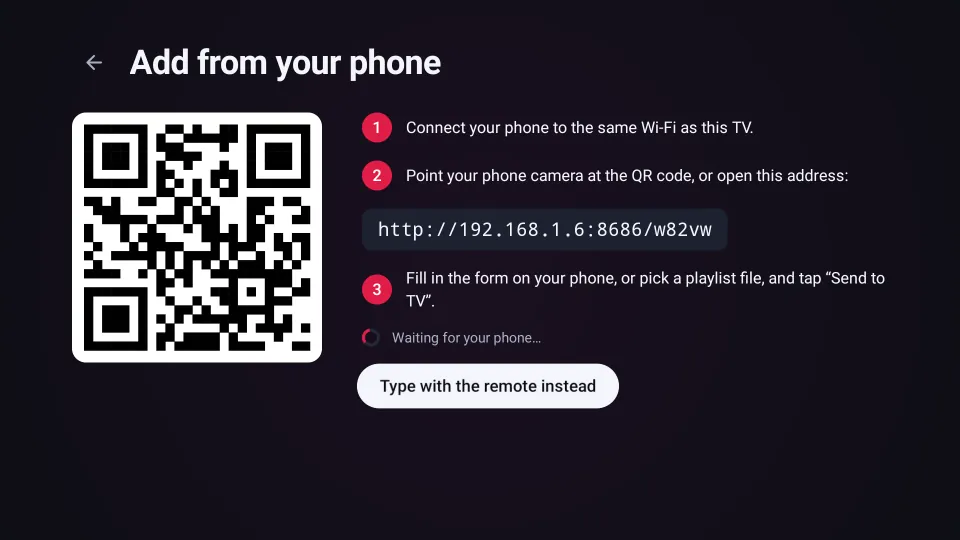
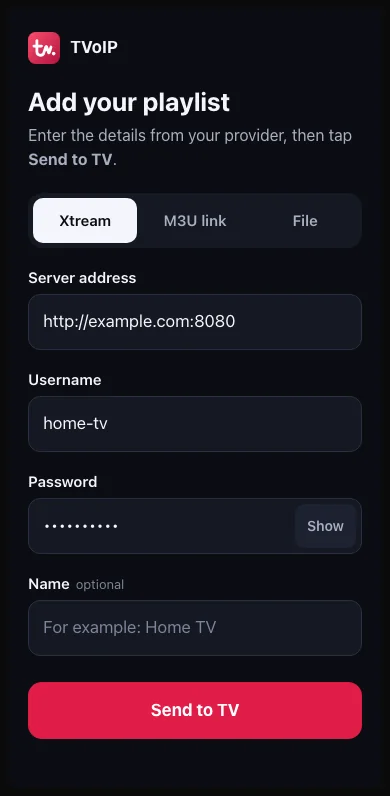
Scan the code on your TV, type the playlist link or Xtream login on your phone, and tap Send. No typing long addresses with the remote.
Works with M3U playlists (as a link or a file) and Xtream Codes logins. The TV guide is added automatically when your playlist includes one.
Watching
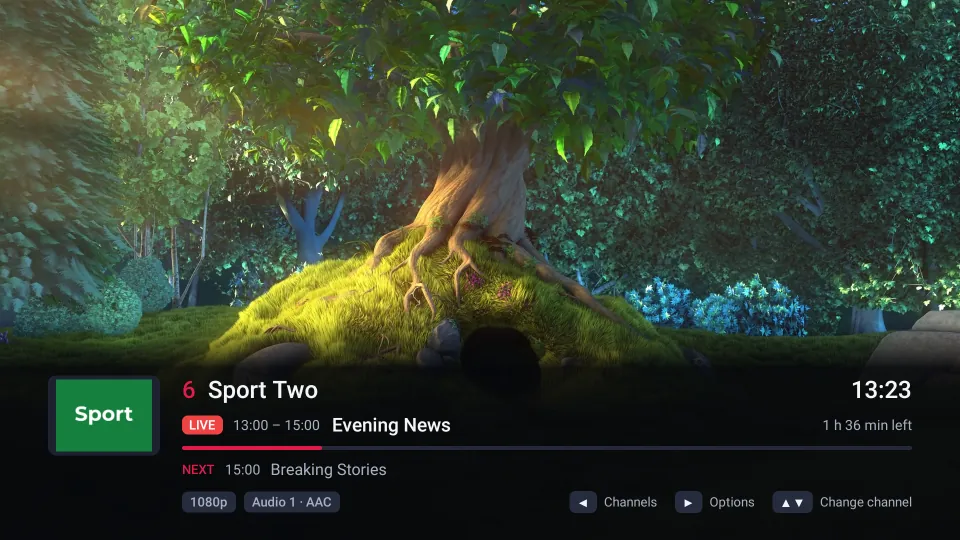
Change channel with up and down, type a channel number from anywhere, and find everything else one press away.
TV guide
Browse up to a week ahead, set a reminder for a show, and watch from the start when your provider offers replays.
Channels missing from the guide can be matched in a few presses. TVoIP suggests the closest names.
Also in TVoIP
Your favourite channels as a row on the Android TV home screen, with what's on now.
For Xtream logins: posters, seasons and episodes, and continue watching where you stopped.
Lock channels or whole categories. Adult categories can be locked in one step.
When your provider refuses an old link, TVoIP fetches a fresh one and keeps playing.
Save your playlists, favourites and settings, and restore them on a new TV.
Plays Widevine and ClearKey channels from playlists that include their keys or licence links.
Install
TVoIP installs from this website, so your TV needs to allow apps from outside its store. It takes a few minutes the first time.
On the Fire TV home screen, search for Downloader and install it.
Go to Settings → My Fire TV → Developer options → Install unknown apps and turn it on for Downloader. If you don't see Developer options, open Settings → My Fire TV → About and select your device name 7 times.
Open Downloader, type tvoip.in/get and select Go.
Select Install, then Open. You can delete the downloaded file when Downloader asks.
Fire TV devices with Vega OS, such as the Fire TV Stick 4K Select, can't install Android apps.
On your TV, open Google Play, search for Downloader (by AFTVnews) and install it.
Open Downloader, type tvoip.in/get and select Go.
When the TV asks, allow Downloader to install apps, then go back.
Select Install, then Open.
Needs Android 7 or newer. Samsung (Tizen) and LG (webOS) TVs aren't supported.
Open this page on your Android phone or tablet and tap Download APK.
Open the downloaded file. If your phone asks, allow your browser to install apps.
Tap Install, then Open.
On your TV, turn on Developer options → USB debugging (on some TVs it's called Network debugging), and note the TV's IP address from its network settings.
On the computer, download the APK and install it with ADB:
adb connect <tv-ip-address>:5555
adb install -r tvoip-0.4.0.apk
Smaller downloads for a specific processor: 32-bit ARM (most TVs and Fire TV sticks) · 64-bit ARM
Download APKQuestions
No. TVoIP is a player. You add the playlist link, playlist file or Xtream Codes login from your TV provider, and TVoIP plays those channels.
Yes. There's no account, subscription or advertising.
They stay on your TV. TVoIP connects only to your provider and the TV guide you add, and doesn't collect usage data. See the privacy policy.
Install the new version the same way, over the old one. Your playlists, favourites and settings stay.
TVoIP reconnects by itself and fetches a fresh link when your provider's link has expired. If a channel still won't play, your provider may have taken it off air or your subscription may need renewing. The message on screen says which.
Write to support@tvoip.in. Include your TV model and what you see on screen.
Free, no account, and set up in a few minutes.
In Downloader on your TV, type